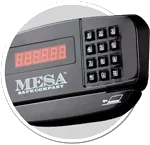


MH & MHRC Card Swipe Electronic Lock

Safes with this Lock:

MH101E Hotel Safe

MHRC916E Hotel Safe


IMPORTANT

To ensure the safety of you belongings, you Must change the factory set Master Code to Your own unique code immediately!
Card Swipe

Accepts almost any card with a magnetic strip
[i.e., driver’s license, credit card, club card, etc.]

Operate safe using the keypad or the card swipe

Hotel Function

This style locking system mananges itself

Lock-Out Mode

If 4 incorrect codes are entered in a row, the Lock-out Mode will trigger for a period of 15 minutes.

Override Functions

Allows you to access the safe using an Override Card or the Override Key

LCD Display

Large, easy to read display

Set Date & Time

Viewing Log

Allows you to view how the safe was accessed by which code, method [card, code, override code, etc.] & what time it was opened

This safe comes from the factory unlocked
Opening Your Safe

Using a Personal Code

To unlock the safe : Input your 3-6 digit code; [[OPENED]] will display & safe will unlock

To lock the safe : Input your 3-6 digit code then Input: #;
[[CLOSED]] will display & the safe will lock

This is a hotel room configuration lock. User sets new code every time the safe is used
[The code you use to unlock the safe is the code you use to lock the safe. Once the safe is in the unlocked position, the safe will reset itself ready for any code]

Use * to delete numbers that appear on the display. If * is entered before your code, a [[]] will display rather than the number, as a security feature

Using a Credit Card

 [Any card with a magnetic strip]

To unlock the safe : Slide your card firmly from right to left with the magnetic strip down;
[[OPENED]] will display & the safe will unlock

To lock the safe : Slide your card firmly from right to left with the magnetic strip down;
[[CLOSED]] will display & the safe will lock

This is a hotel room configuration lock. User sets new card every time the safe is used
[The card you use to unlock the safe is the card you use to lock the safe. Once the safe is in the unlocked position, the safe will reset itself ready for any card]

IMPORTANT:

Swipe your card firmly & evenly from right to left. If an incorrect direction or swiping speed too fast or too slow, [[ERROR]] or [[AGAIN]] will display. You will need to swipe your card again. The card to unlock the safe should be the same card to lock the safe. If not, [[E-CARD]] (error card) will display.

When the safe is in the locked position [[E-Code]] or [[E-Card]] will display after an invalid entry

If an incorrect code or card is used 4 consecutive times & [[E-Code]] or [[E-Card]] displays after every incorrect entry, the safe will go into a lock-out period of 15 minutes. During this period, when pressing any button on the keypad, [[HOLD##]] will display. The ## represents the time that is remaining in the lock-out period.

If [[E-Code]], [[E-Card]] or [[ERROR]] displays after entering your code or swiping your card to unlock the safe, you will need to use the Override Code, Override Card or Override Key.

If [[E-BAR]] displays, you will need to use the Override Key
Using the Override Code
Input : #-#; [[SUPER]] will display

[Do NOT pause between #-# entries]
Input : Override Code; the safe will unlock
The default Override Code is factory set : [factory set Override Code : x – x – x – x – x – x]

Please see your user manual for the factory set Override Code or contact Tech Support

IMPORTANT

To ensure the safety of you belongings, you Must change the factory set Master Code to Your own unique code immediately!

Using the Override Card

Swipe the Override Card; the safe will unlock
[See Changing the Override Card to set your card]

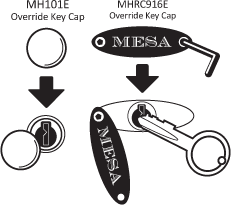
Using the Override Key
The Override Key will only work when safe is in locked position

Locate the small round cap [on MH101E model] or the gold oval emblem [on MHRC916E model], just below the right side of the keypad

Using the allen wrench [included with MHRC916E model], remove the cover
[for the MH101E model, simply remove the cap with your fingertips.

Insert the Override Key & turn clockwise, a ¼ turn & open the door

To remove the key, turn the key coutner-clockwise, a ¼ turn, back to the inserted position

IMPORTANT:

NEVER store the Override Keys inside the safe!

Changing the Override Code
The safe must be in the unlocked postion.

Input : *-*;
[[PROG]] will display

Input : 8-4-2-6-2-7-#;
[[OLD]] will display

Input : Override Code-#;
[[NEW]] will display

The default Override Code is factory set : [factory set Override Code : x – x – x – x – x – x]
Please see your user manual for the factory set Override Code or contact Tech Support.

Input : a 6-digit New Code-#;
[[AGAIN]] will display

Re-Input : New Code-#;
[[GOOD]] will display.
The Override Code has been successfully changed.

Changing the Override Card
The safe must be in the unlocked postion.

Input : *-*;
[[PROG]] will display

Input : 7-2-6-2-4-8-#;
[[CARD]] will display

Swipe the card you wish to set as the new Override Card;

[[GOOD]] will display
The Override Card has been successfully changed.

The safe must be in the unlocked postion.

Input : *-*;
[[PROG]] will display

Input : 7-1-1-4-6-9-#;
[[CODE]] will display followed by a 6 digit number

The 1st 6 digit number is now displayed & Slot #1 will be ‘Blinking’
[for Slots, refer to image]

The default setting is : 1-1-1-1-2-1

To advanced to the next Slot without making changes to the current Slot, input the number displayed in the current Slot.

Input : # if you do not want to make any changes to the 1st 6 digit number & would like to move on to the 2nd 6 digit number

Input : * if you would like to start over & go back to Slot #1

Slot #1 : Entry Display
This is a security featureSlots: Lock Settings

Input : 0 to disable Entry Display.
The numbers entered will not display

Input : 1 to activate Entry Display.
The numbers entered will display

When Entry Display is activated, Input : * before entering the code & the numbers entered will not display for added security

This is a security feature

Input : 0 to disable Code Display.
The code entered will not be displayed after the safe is locked

Input : 1 to activate Code Display.
The code entered will be displayed for 2 seconds after the safe is locked

When Entry Display is activated:
Input : * before entering the code & the numbers entered will not display

Input : 0 to disable Hide Button function

Input : 1 to activate Hide Button function

Input : 0 to disable Audit Function function

Input : 1 to activate Audit Function function

Input : 1 to place the lock into Standard Lock ModeIf Standard Lock Mode is selected :

The 1st code/card you use to lock the safe will be the set code/card

Once the code/card is set, you only need to Input : # to lock the safe

You will need to input your set code/card to unlock the safe

To change your set code/card, you will need to go back into the Lock Settings
[see : Changing the Lock Settings]

Place the lock function into Hotel Lock Mode

Go back into the Lock Settings

Place the lock into Standard Lock Mode

Input : 1 if not already entered. This slot does not disable or activate any functions

Input : # to confirm the 1st set of Lock Settings & move forward to the 2nd set of Lock Settings

If you do not want to make any changes to the 2nd set of Lock Settings:
Input : # again.

The 2nd 6 digit number is now displayed & Slot #1 is ‘Blinking’
[Default Setting : 4-7-1-5-4-0]

input a number from 1-9 digits to set the number of times allowed for entering an invalid code or card before placing the lock into Lock-Out Penalty

Input : 3 to set the code length to a 3 digit code

Input : 4 to set the code length to a 4 digit code

Input : 5 to set the code length to a 5 digit code

Input : 6 to set the code length to a 6 digit code

Input : 7 to set the code length to a 7 digit code

Input a number 00-99 to set the length of the Lock-Out Penalty

Example : For 5 minutes, Input : 0 in Slot #3 & 5 in Slot #4

Input : 0 to disable the Override Function

Input : 1 to use the Override Code entry only;
disables the Override Card

Input : 2 to use the Override Card entry only;
disables the Override Code

Input : 3 to use the Override Card & Card together.

Input the Override Code then swipe the Override Card

Input : 4 to use either the Override Code or the Override Card;

Input : 0 if not already entered. This slot does not disable or activate any functions

Input : # to confirm the 2nd set of Lock Settings & [[GOOD]] will display
NOTE:


You will only need to set the date & time to use the Lock Opening Records function. The safe must be in the unlocked position

Input : *-*
[[PROG]] will display

Input : 0-55-2-6-1-#
[[DATE]] will display

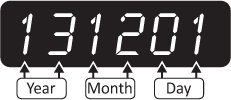
The 6 digit number represents the Year – Month – Day

Example : December 1, 2015 = 151201

Slot #1 & #2 : Year

Enter the Year : 15

Slot #3 & #4 : Month

Enter the Month : 12

Slot #5 & #6 : Day

Enter the Day : 01

Input : # to confirm the date setting & move onto the clock

The 6 digit number represents the Hour – Minute – Second

When adjusting the hour,you will need to use military time [24-Hour rotation]

Example : 7:25:59am = 072559

Slot #1 & #2 : Hour

Enter the Hour : 07

Slot #3 & #4 : Minutes

Enter the Minutes : 25

Slot #5 & #6 : Seconds

Enter the Seconds : 59

Input : # to confirm the clock setting
[[GOOD]] will display

IMPORTANT:

If bolting down your safe from the bottom, be sure to remove the feet pads.

The safe must be in the unlocked postion.

Input : *-*;
[[PROG]] will display

Input : 1-6-2-5-5-0-#;
[[GOOD]] will display, followed by a 6 digit number

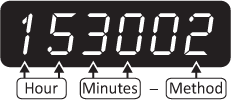
One opening record uses two screens:

The 1st screen displays the date that the safe was opened.

The 2nd screen displays the time & method used to open the safe.
[Method: user code, card, override code, etc.]

Method Reference  [What Opened the Safe?]

User Code : 1 is displayed

Override Code : 2 is displayed

User Card : 5 is displayed

Override Card : 6 is displayed

Example : Safe was opened at 3:30:00pm by the Override Code = 153002

Navigating through the Open Records

Press 2 to go back to the previous record

Press 8 to go forward to the next record

Press 6 to show the next screen of a specific record

Press 4 to show the previous screen of a specific record

Press 5 to go to the lastest Lock-Opening record

Input : *
[[GOOD]] will display & the Lock-Opening Records will close

To maximize the security of your safe, we recommend using the anchor kit [provided] to bolt down your safe. The safe can be anchored to a wall, floor, etc., or a Mesa Model MP-Pedestal
[click here to see Hotel Pedestals]

Choose a suitable & convenient located for your safe. Set the safe in place & locate the anchor holes provided on the safe to mark the area to be drilled on the wall, floor, desk, etc.

If bolting your safe to a wall, please ensure that the safe is resting on a supporting surface; i.e., floor, table, shelf.

After marking the drill spots, move the afe aside and drill holes of the approprate diameter & depth for the type of hardware being used & the mounting surface

Place safe back, aligning the anchor holes over the holes drilled, & install the fasteners as required.

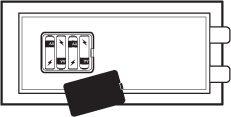
With the door open, remove the battery compartment cover by pulling down the clip to release it.
[Located on the inside of the door]

Install 4AA alkaline batteries [not included], note the polarity markings (-/+) in the battery compartment to ensure proper installation
Re-attach the battery compartment cover back into place

IMPORTANT:

Do not use rechargeable batteries, mix alkaline with non-alkaline batteries, or mix old & new batteries.

Troubleshooting

[[ LO-BATT ]]

Issue : The batteries are low

Solution : Change your batteries

[[ E-BAR ]]

Issue : The door is not closed properly / The bolts are not locking

Solution : Override Keys must be used to unlock & re-lock safe, then remove keys & try code.

[[ HOLD## ]]

Issue : 4 repeated incorrect user attempts. Lock-Out Penalty was initiated.

Solution : Wait 15 minutes then input correct user code/card

[[ E-CARD ]]

Issue : Incorrect card use/not swiping the same card originally used to open safe

Solution : Swipe original card used to open safe

[[ E-CODE ]]

Issue : Incorrect user code entry

Solution : Verify user code & re-enter

[[ ERROR ]]  or [[ AGAIN ]]

Issue : Card was swiped incorrectly from left to right / Card was swiped too fast or too slow

Solution : Evenly re-swipe card from left to right

To view Battery Levels, Input : # when safe is in locked position.

[[ BATT-H ]]

Battery level is high

[[ BATT-L ]]

Battery level is low

Hold on to your Proof of Purchase [receipt/invoice]. You will need this to order keys or use the Warranty Service.

Do not open your safe if it is lying on its side, back or top. ONLY open your safe when it is in the upright position

Do not slam the door. Extreme shock can damage the lock or jam the bolt work system
Do not shut the door with the locking bolts in the locked position. This may damage the locking bolts & create problems unlocking & locking the safe
Do not overstuff contents of the safe so that the door must be forced shut. Bolt work may jam as a result.
Keep liquids away from keypad. Liquids can damage the keypad.

The safe door is removable. The remove door, unlock the safe, open the door & lift the door up. Do not lose the hinge pins – they may slide out of the hinge when removing the door. If they happen to slide out, you can easily insert them back into the hinge.

Please contact Tech Support at 888.381.8514 for assistance.
Live Technical Support Available Monday – Friday 8:00am – 4:30pm [Pacific Standard Time]

Click Here to Order Keys.
Click Here to view our Mesa Safe Warranty.
Click Here to view our Limited Lifetime MBF Gun Safe Warranty.

Available Downloads